Create Template
This guide explains how to create and manage your own workout templates using the Fabulous50s Vitality App. You can create a personalized template and add workouts to specific days to build your weekly workout schedule.
Step 1: Navigate to the Your Plan Page
- Open the Application: Launch the Fabulous50s Vitality App on your device.
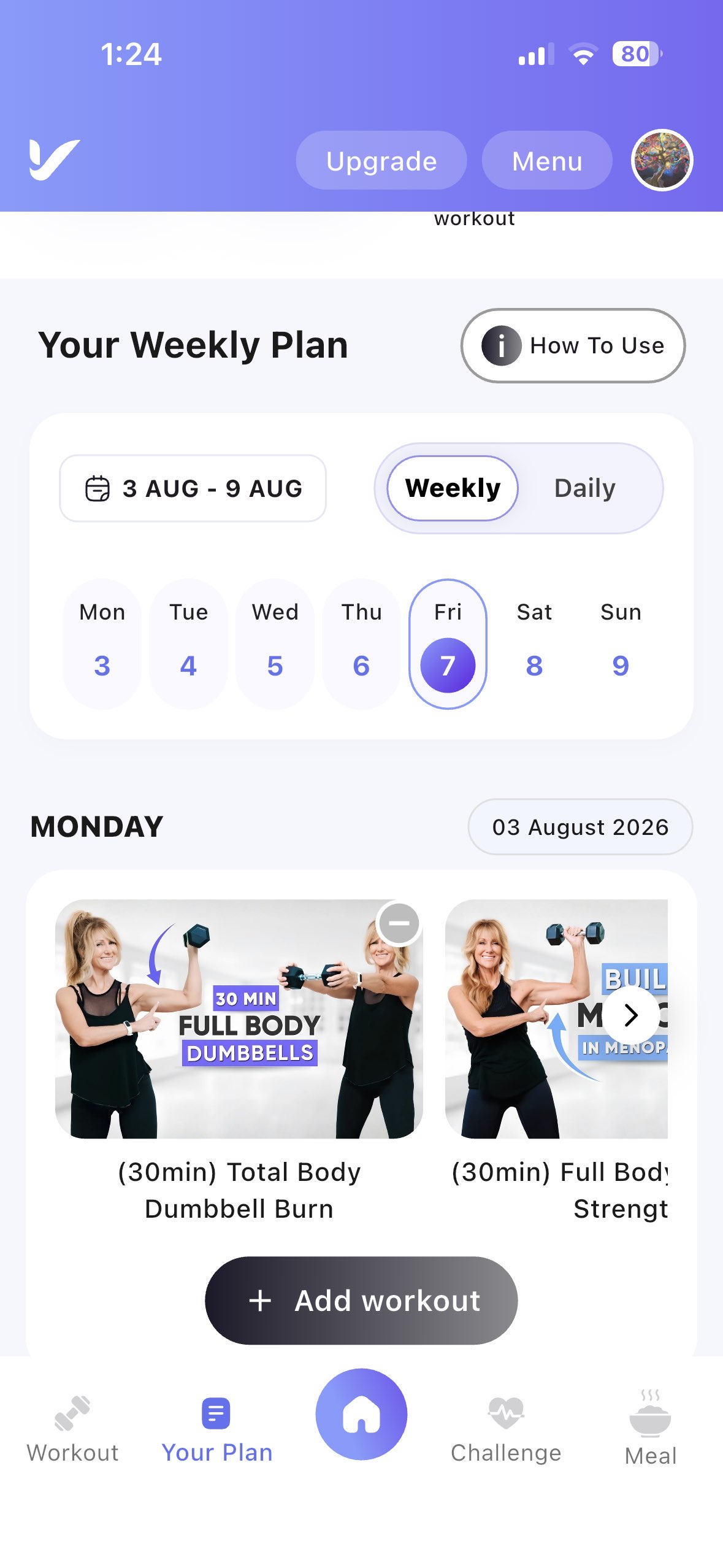
- Access the Your Plan Page: Tap the Your Plan menu from the bottom navigation bar.
Step 2: Create Your Favorite Template
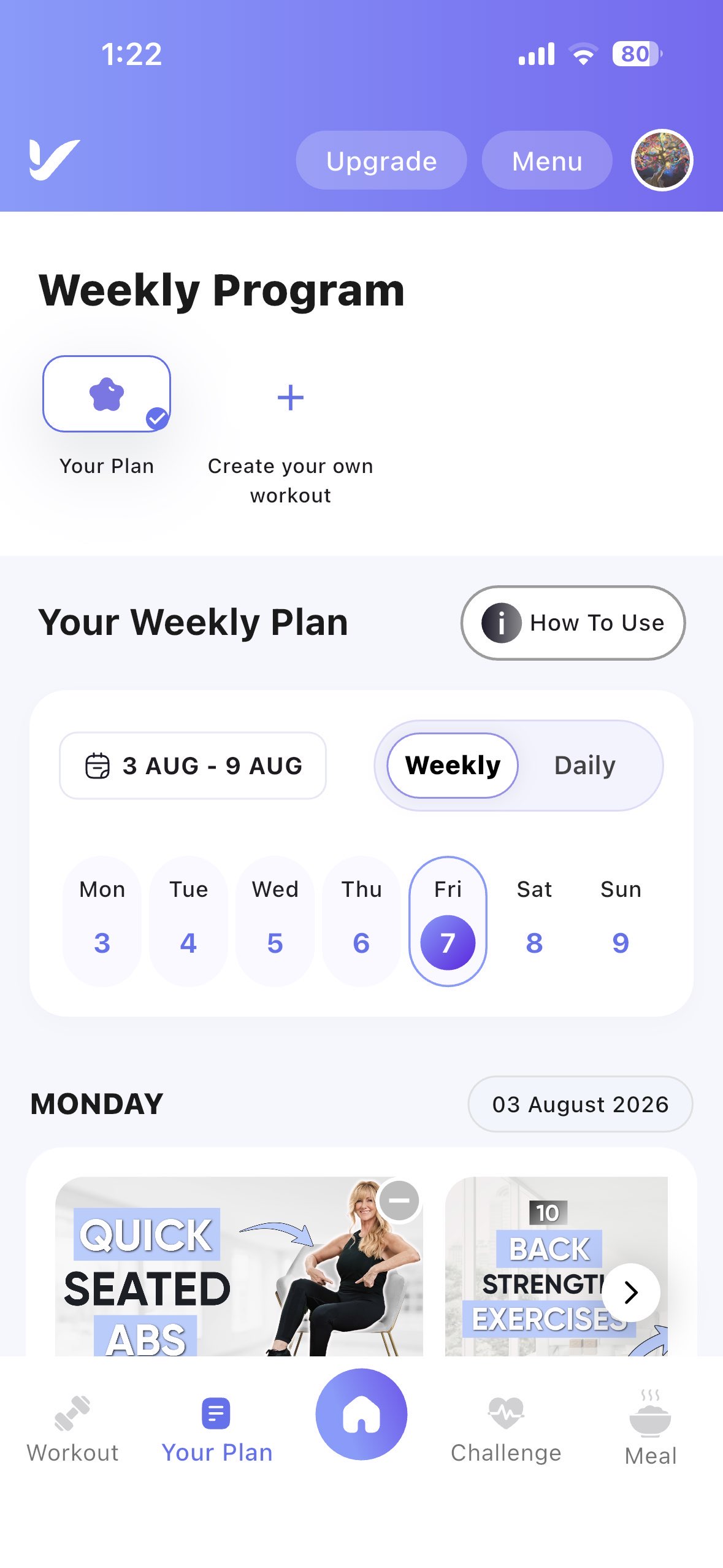
- Locate the Add Icon: On the top template bar, find the + (Add) icon.
- Create a Template: Tap the + icon to create a new workout template.
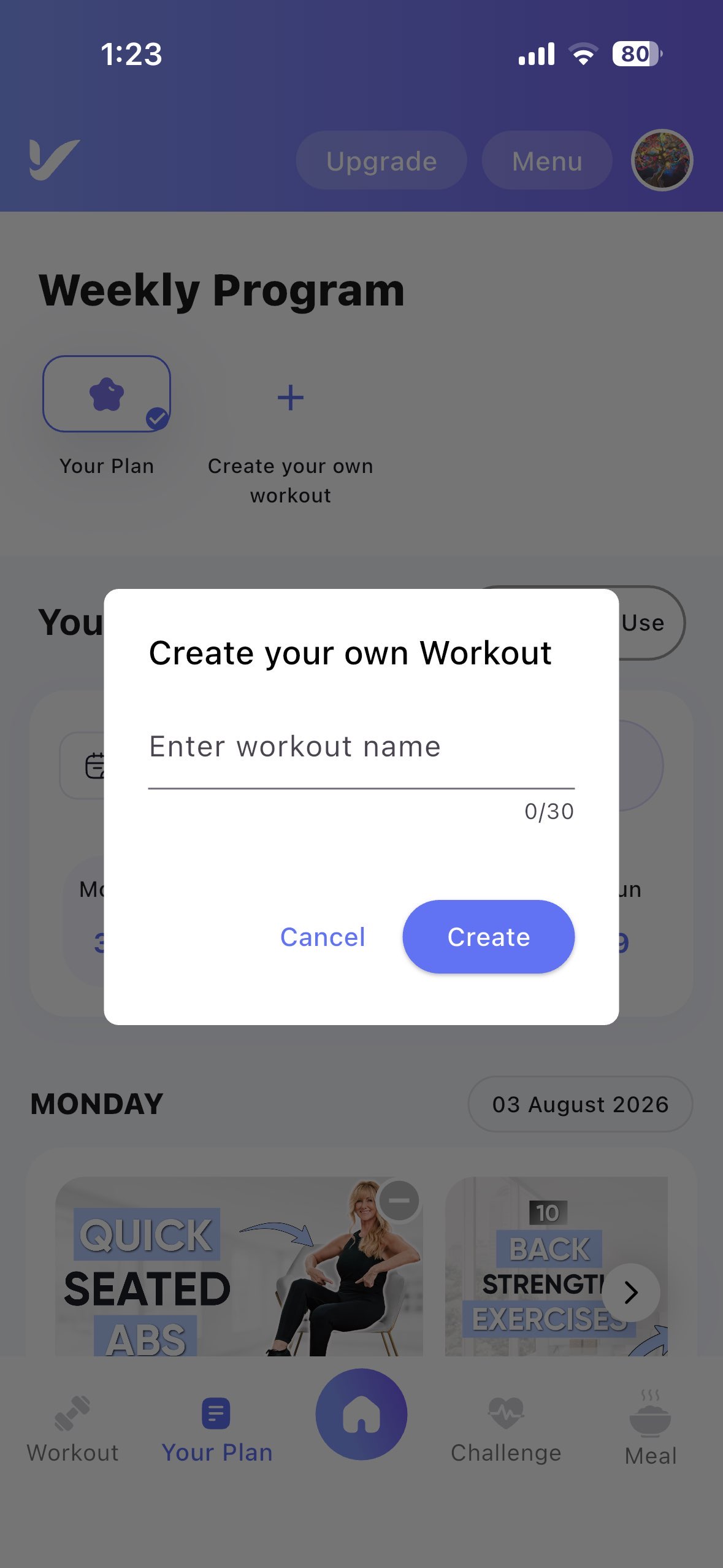
- Name Your Template: An input field will appear. Enter a name for your workout template and save it.
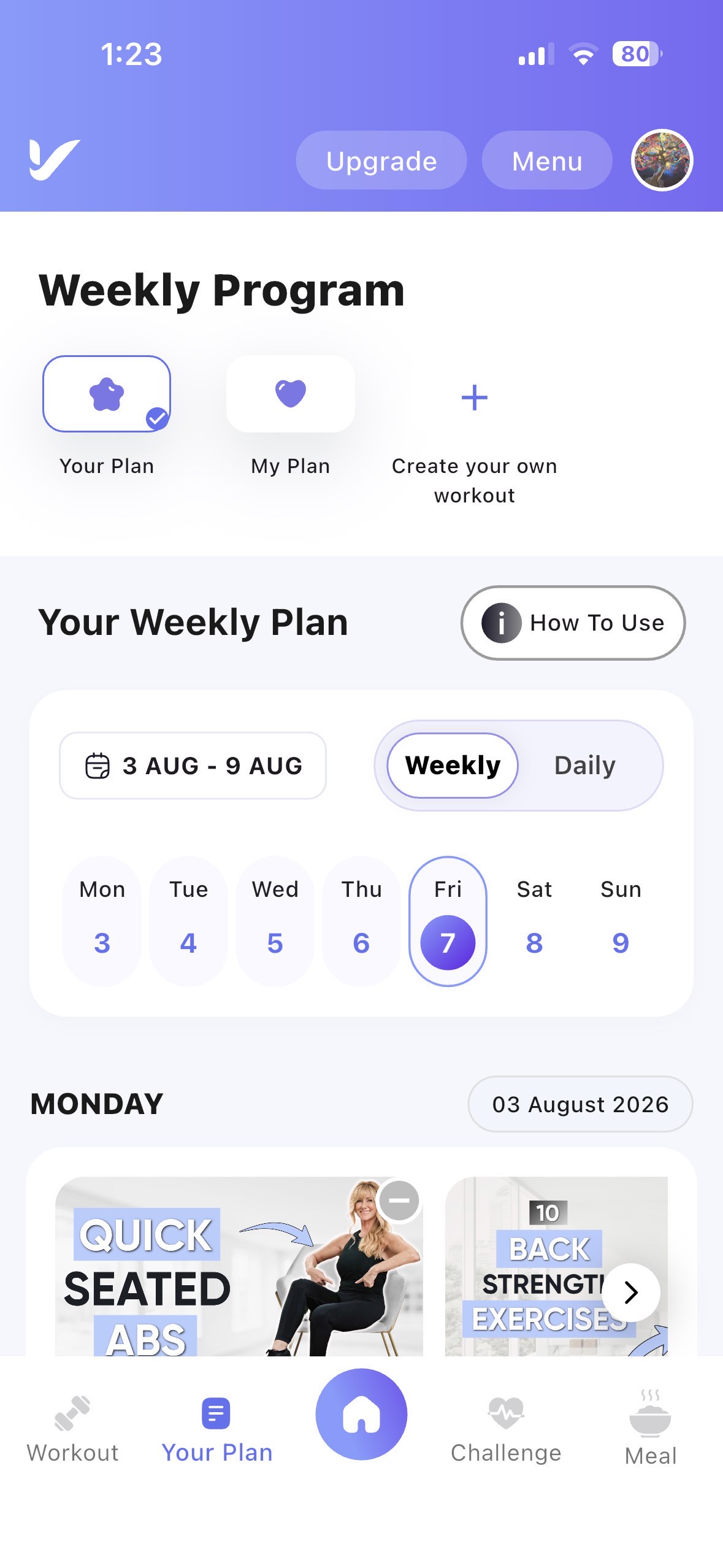
- Template Created: The newly created template will be added to the template list and can be selected to create your weekly workout plan.
Step 3: Select a Template
- Locate the Created Template: Find the workout template you created from the template list.
- Long Press the Template: Press and hold the template to open the available options.
- Set as Default: Tap Set as Default to make it your active workout template.
- Default Template Activated: The selected template will now be used as your default weekly workout plan, allowing you to add and manage workouts for each day.
Step 4: Choose the Day of the Week
- Select a Day: Choose the day of the week (Monday to Sunday) where you want to add a workout.
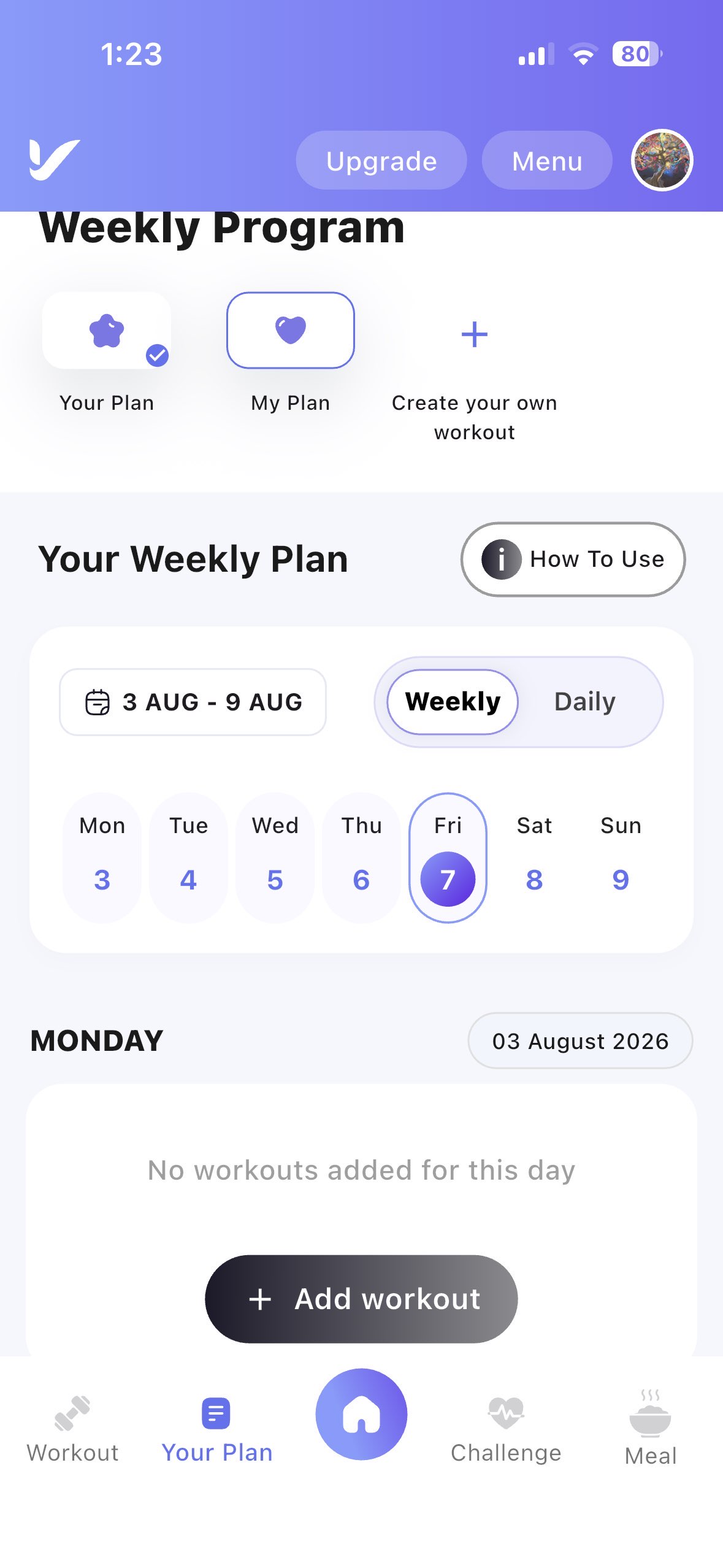
- View Daily Schedule: If no workouts have been added, a No workouts added for this day message will be displayed along with the Add Workout button.
Step 5: Add a Workout
- Tap the Add Workout Button: Click the Add Workout button displayed below the selected day.
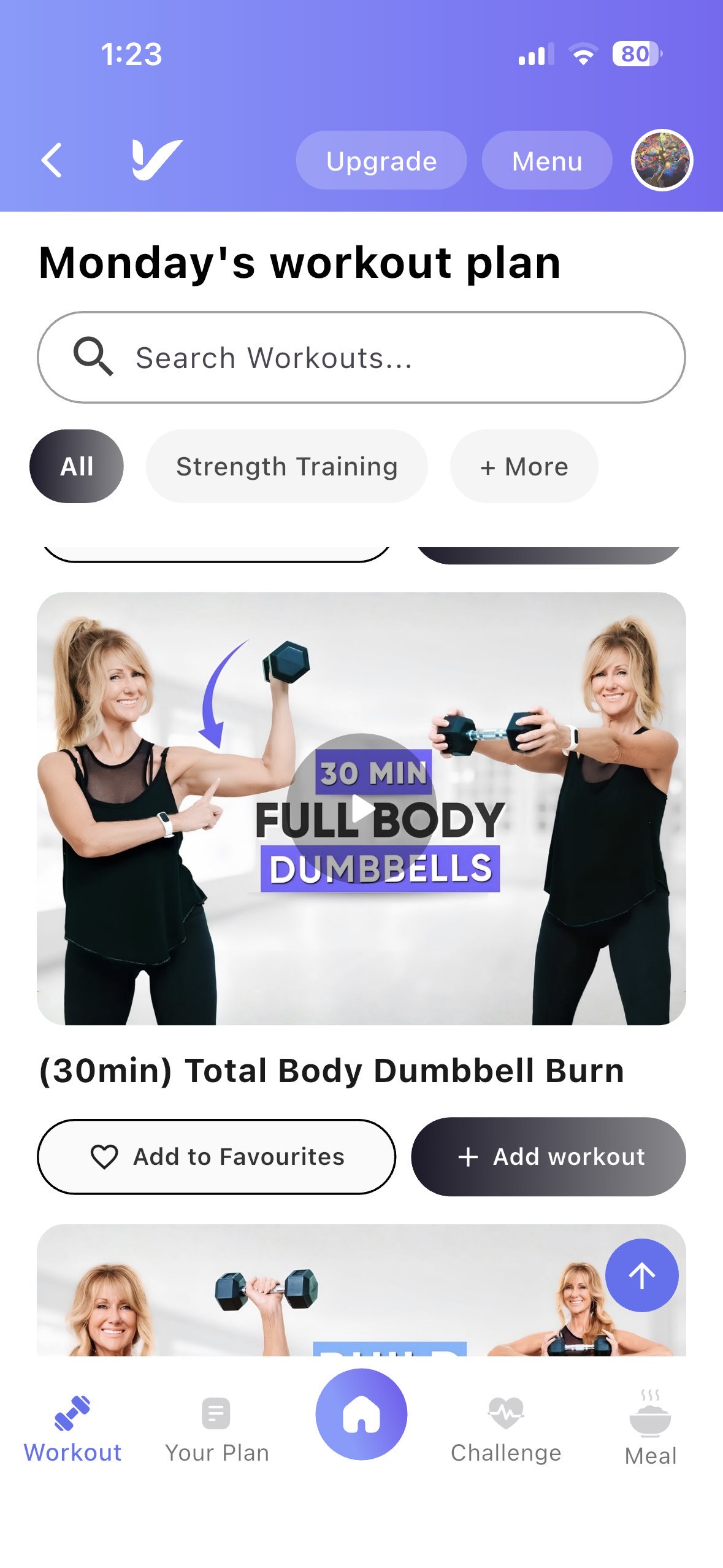
- Open Workout Library: You will be redirected to the Workout Library, where you can browse or search for workouts.
Step 6: Select a Workout
- Browse Workout Categories: Choose a workout from the available categories or use the search bar to find a specific workout.
- View Workout Details: Open the workout to view its thumbnail, description, and details.
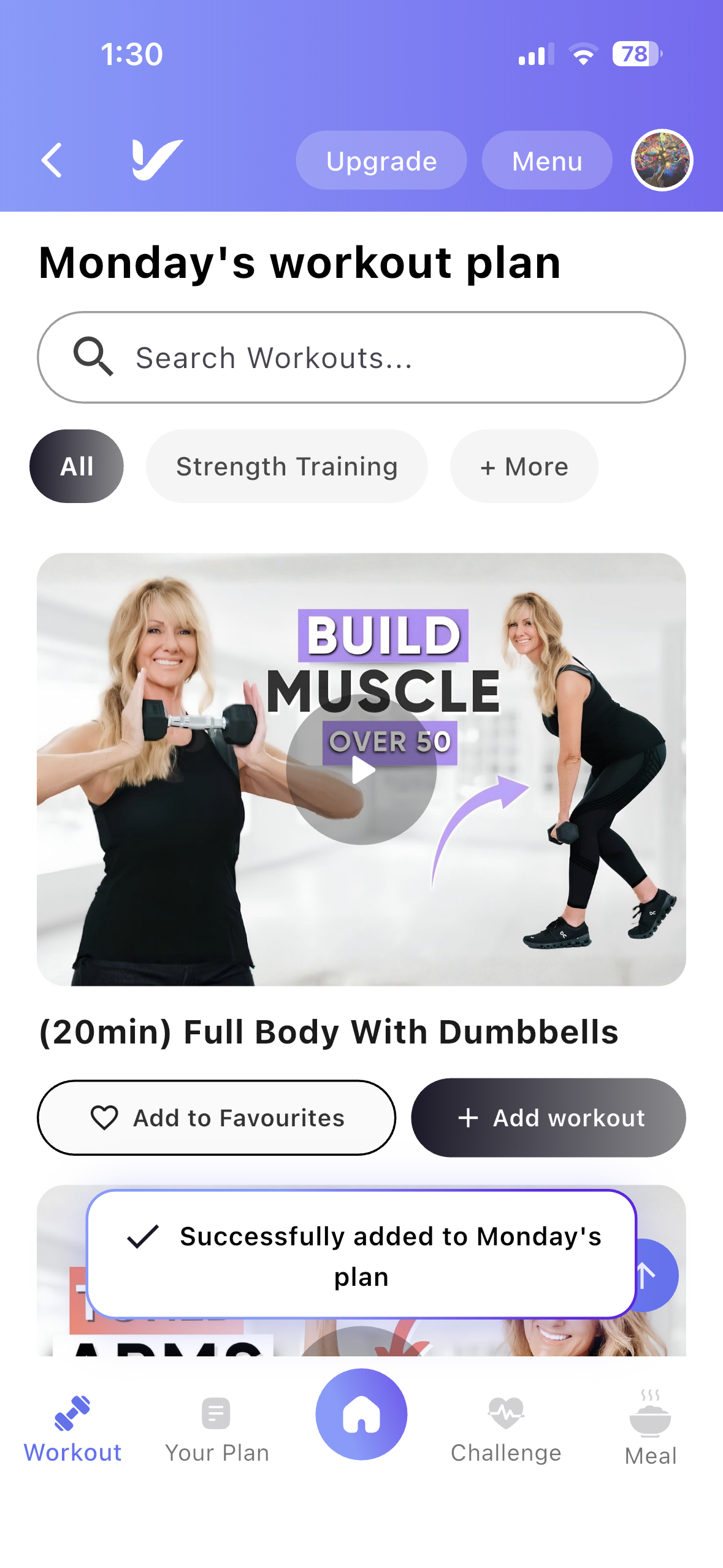
- Add Workout: Tap the Add Workout button to assign the workout to the selected day in your weekly plan.
Viewing Added Workouts
- View Your Weekly Schedule: Return to the Your Plan page to view the workout added for the selected day.
- Continue Building Your Plan: Repeat the same steps to add workouts to other days and create your personalized weekly workout schedule.