14. Cast
Seamlessly elevate your fitness experience with AirPlay and Chromecast support, allowing you to cast workout videos directly to your smart TV or compatible streaming devices. Enjoy immersive, full-screen workouts from the comfort of your living room.
Description:
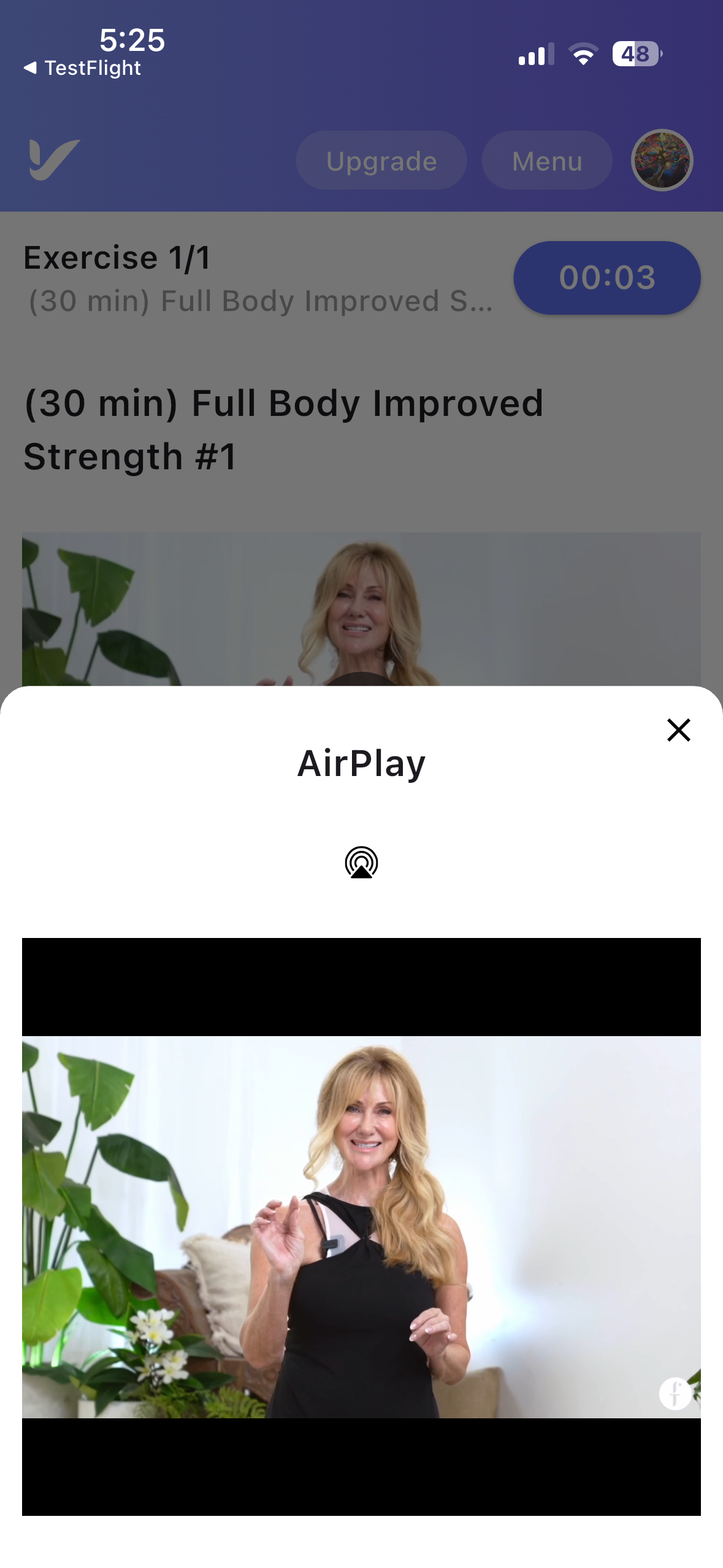
Enjoy your workouts, meditations, and wellness content on the big screen with seamless casting to AirPlay and Chromecast compatible devices. Ideal for living room sessions, family participation, or immersive experiences.
For Apple Devices
Apple users enjoy the flexibility of both AirPlay and Chromecast support.
How to Use on Apple Devices:
- Navigate to the Workout section within the app.
- Select a workout and begin the session.
- On the Workout Progress Screen, you'll see both:
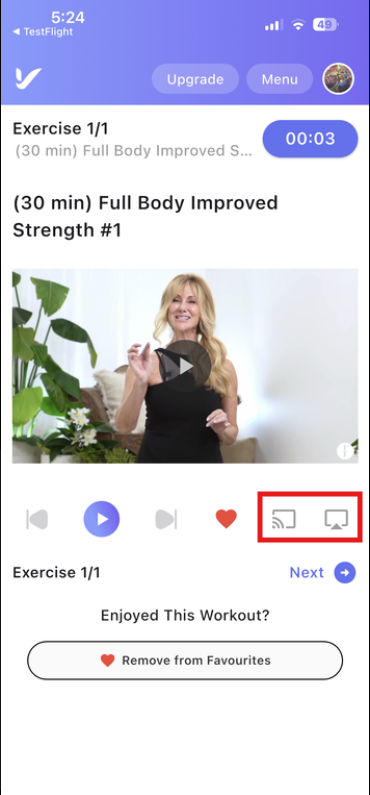
- AirPlay icon for streaming to Apple TV or AirPlay-enabled devices.
- Chromecast icon for streaming to any Chromecast-supported TV or device.
Apple devices support both AirPlay and Chromecast, giving users more streaming options.
For Android Devices
Android users have access to Chromecast functionality.
How to Use on Android Devices:
- Go to the Workout tab and choose your desired session.
- Once the workout starts, the Chromecast icon will appear on the Workout Progress Screen.
- Tap the Chromecast icon to select a device and begin streaming.
ℹ AirPlay is not available on Android devices.
Fabulous50s Vitality – Casting Troubleshooting Guide (iOS & Android)
This guide helps diagnose and resolve casting issues when users try to cast workout videos from the Fabulous50s Vitality app to smart TVs, Chromecast, or other casting devices.
iOS Casting Troubleshooting Guide (iPhone/iPad)
1. Check Local Network Permission (Most Common Issue)
The Fabulous50s Vitality app requires access to the Local Network to detect casting devices.
Steps:
- Open Settings on your iPhone/iPad
- Select Apps, scroll down and tap Fabulous50s Vitality
- Ensure Local Network is enabled
- Restart the Fabulous50s Vitality app and try casting again
2. Ensure Both Devices Are on the Same Wi-Fi
- iPhone/iPad and TV/casting device must be connected to the same Wi-Fi network
- Casting won't work on guest networks or mobile hotspots
3. Enable Bluetooth
Some casting systems require Bluetooth for device discovery.
- Go to Settings → Bluetooth
- Ensure Bluetooth is ON
4. Restart Devices
Restart:
- iPhone/iPad
- Smart TV or Chromecast
- Wi-Fi router
5. Check TV/Chromecast Casting Settings
On the TV or casting device:
- Ensure Casting / AirPlay / Chromecast is enabled
- Ensure the device is not in restricted mode
6. Update the Fabulous50s Vitality App
- Open App Store
- Search for Fabulous50s Vitality
- Tap Update if available
7. Update iOS Software
- Go to Settings → General → Software Update
- Install any available updates
8. Reset Network Settings (Last Resort)
This will remove saved Wi-Fi networks and Bluetooth pairings.
- Go to Settings → General → Transfer or Reset iPhone
- Tap Reset
- Select Reset Network Settings
- Restart the Fabulous50s Vitality app and try casting again
Android Casting Troubleshooting Guide
1. Ensure Both Devices Are on the Same Wi-Fi Network
- Android device and TV must be connected to the same Wi-Fi
- Disable VPNs and avoid guest networks
2. Confirm Nearby Devices Permission
- Open Settings
- Go to Apps → Fabulous50s Vitality → Permissions
- Ensure Nearby Devices is allowed
3. Enable Bluetooth
- Swipe down from the top of the screen
- Ensure Bluetooth is turned ON
4. Disable Power Saving / Battery Optimization (Important)
Power-saving modes may block background device discovery and prevent casting.
Steps:
- Open Settings
- Go to Battery or Battery & Device Care
- Disable Power Saving Mode
- Go to Apps → Fabulous50s Vitality → Battery
- Set to Unrestricted (or Allow Background Activity)
5. Restart Devices
Restart:
- Android phone
- Smart TV / Chromecast
- Wi-Fi router
6. Check Casting or Screen Sharing Settings
On Android:
- Swipe down to open Quick Settings
- Look for Cast, Screen Cast, Smart View, or Chromecast
- Tap and connect to your TV
7. Update the Fabulous50s Vitality App
- Open Google Play Store
- Search Fabulous50s Vitality
- Tap Update if available
8. Clear App Cache
- Go to Settings → Apps → Fabulous50s Vitality → Storage
- Tap Clear Cache
(Do NOT clear data — it may log you out.)
9. Update Android System WebView
- Open Google Play Store
- Search Android System WebView
- Tap Update
10. Disable VPN
VPNs may block local network device discovery.
11. Factory Reset Casting Device (Last Resort)
If the TV or Chromecast still doesn’t appear:
- Reset the casting device to factory settings
- Reconnect to Wi-Fi
- Restart the Fabulous50s Vitality app and try casting again